An always-on box for my coding agents, on Railway
How I set up a cloud server to drive Claude Code and Codex from my phone: Railway, T3 Code, signed commits, Vite+ as the toolchain, and a hard line between client and personal code.
I wanted to start an agent from my phone, walk away, and come back to a pull request.
My laptop can’t do that: it sleeps, it travels, it closes. So I set up a small server in the cloud that never turns off, runs Claude Code and Codex, and that I drive from the T3 Code app on my phone.
This is how I did it, including the mistakes. The mistakes are the useful part.
The rule that shaped everything
Client code never goes on that box.
My client projects stay on my laptop, in the T3 desktop app. The cloud box only gets my personal repositories, from my personal GitHub account.
The separation is per machine, not per project. One environment can’t be restricted to some projects and not others, and I don’t connect the two environments to each other. If the box is compromised, the worst case is my side projects, not someone else’s codebase.
There’s a second reason: clients have their own rules about AI tools. Some forbid them, some limit them. I check those terms before an agent touches their code, and that check happens on my laptop, not on a server shared by every agent I run.
Why Railway
I looked at two options.
Vercel Sandbox gives you microVMs on demand. Great for running untrusted code for a few minutes, but it’s not a server that stays up, and there’s no documented way to run T3 on it. Not what I needed.
Railway, with the T3 Code template, was the shortest path:
- T3 Code comes preinstalled, with Claude Code, Codex and OpenCode.
- A volume keeps the data across restarts.
- You get a public domain in one click.
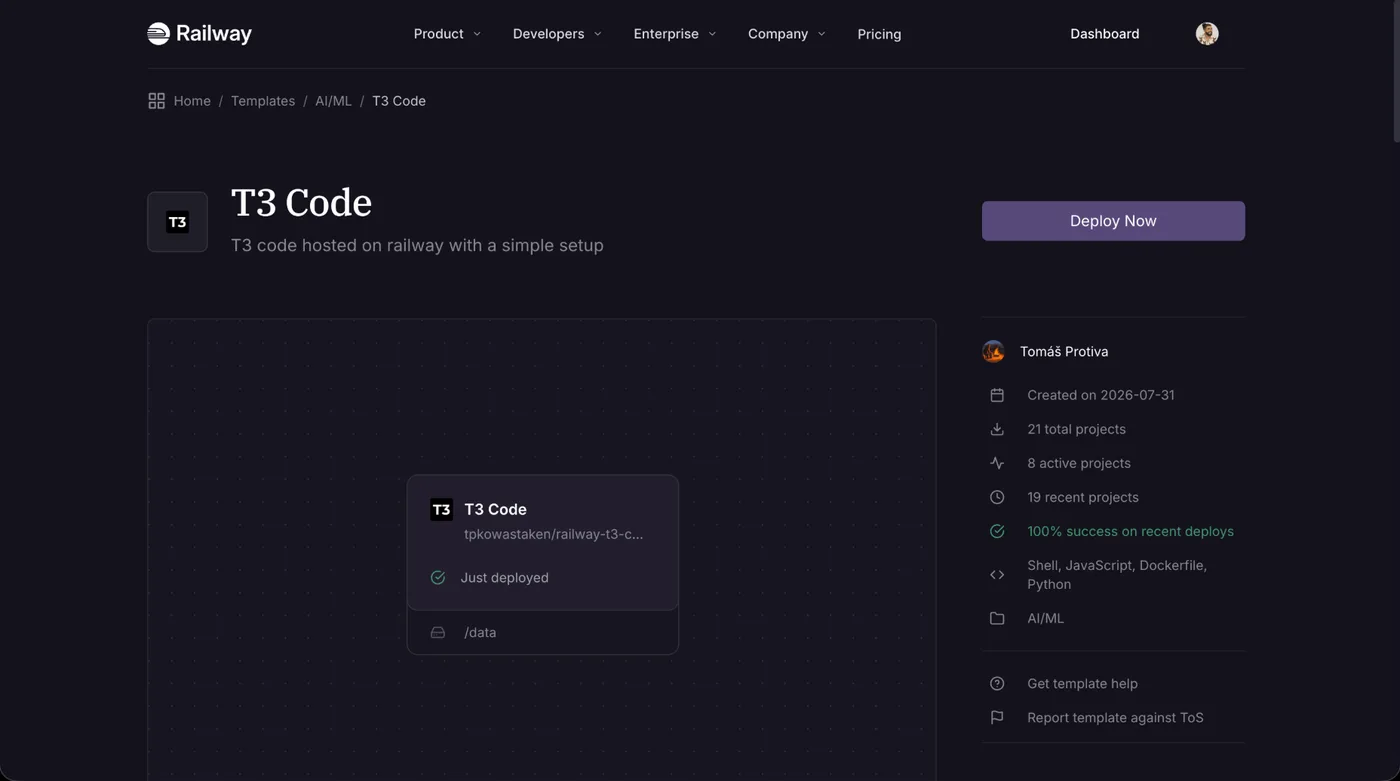
The T3 Code template: one service, one volume on /data.
Two things to know before you start. The trial plan (512 MB of RAM) is too small; you need the Hobby plan. And T3 is in alpha (v0.0.45 when I set this up), so expect rough edges.
Deploy and pair the phone
- Deploy the template on Railway.
- Set
T3_SETUP_PASSWORDin the service variables. - Generate a public domain.
- Open
/railway-pairon that domain. It gives a one-time link, valid for 15 minutes, with a QR code. Scan it in the T3 mobile app.
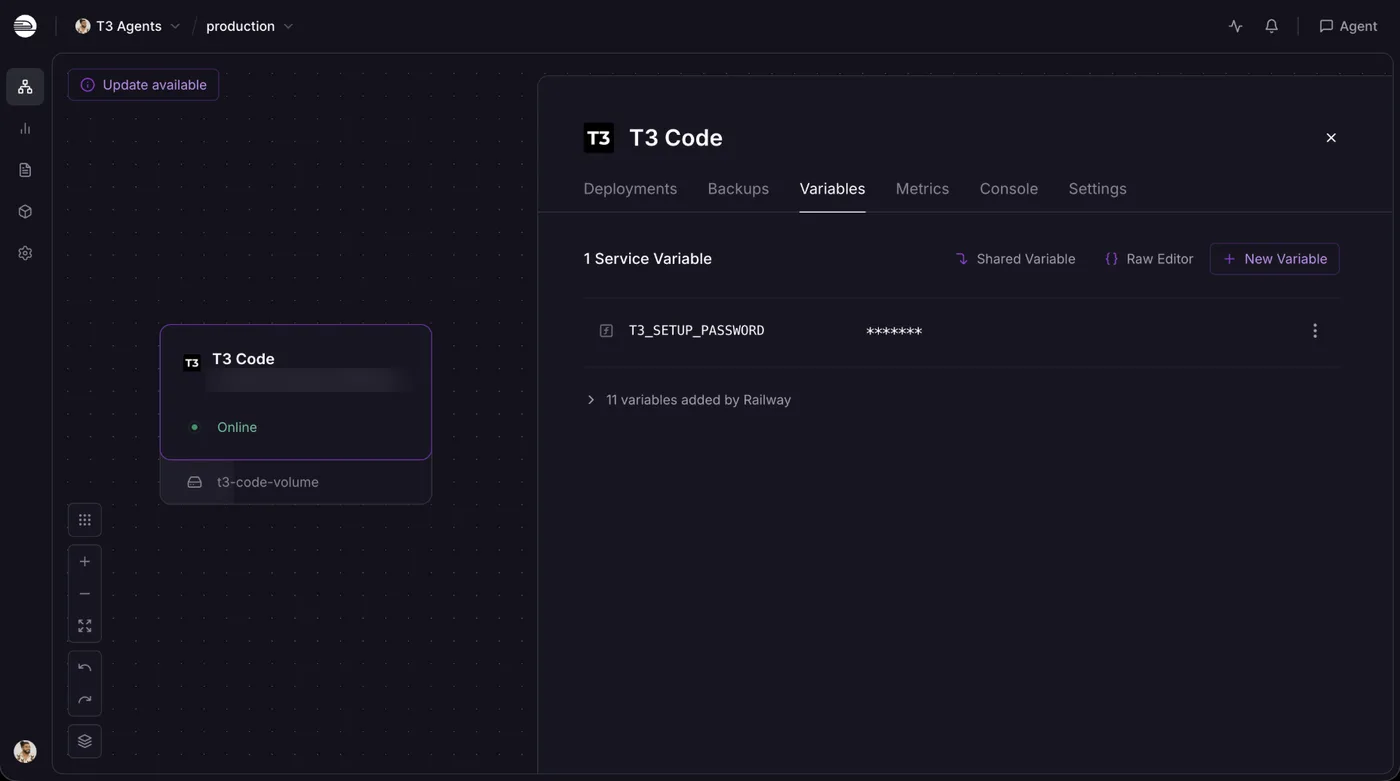
One variable to set yourself: T3_SETUP_PASSWORD. Railway adds the rest.
That’s it for access. The pairing link is a credential: don’t paste it anywhere, and don’t share it.
To see which devices are connected, and drop any you don’t recognise:
t3 auth session list
t3 auth session revoke <session-id>
The mistake that cost me the most time: the wrong user
The Railway console drops you in as root. So I did the whole setup as root: Claude login, Git config, GPG key, SSH key.
None of it was used. T3 runs as a user called t3, and the agents run as t3 too. Everything I’d configured lived in /root, invisible to them. On the phone, the Claude provider showed “not authenticated”, and I couldn’t tell why.
I redid everything as t3. Two lessons:
- From the Railway console, switch user first:
su - t3. Ifsuasks for a password, you’re not root in the first place. - The terminal built into T3 already runs as
t3. Use that one when you can.
The second surprise was the paths. I assumed /home/t3. In reality:
t3’s home is/data/home.- Projects live in
/data/workspaces. /datais the persistent volume. Everything else is rebuilt from the image on every restart and redeploy:/usr,/etc,/opt,/tmp, apt packages.
So the rule on this box is simple: anything that matters goes under /data. Tools go in $HOME, not in system paths.
Git identity and signed commits
I want every commit an agent makes on that box to be signed and attributed to me.
git config --global user.name "Maxime Sahroui"
git config --global user.email "<my email>"
git config --global commit.gpgsign true
git config --global tag.gpgsign true
The key is an ed25519 GPG key (certify and sign, expires in 2 years) with a cv25519 subkey for encryption. I added the public key to GitHub, made a test commit, and it showed up as Verified.
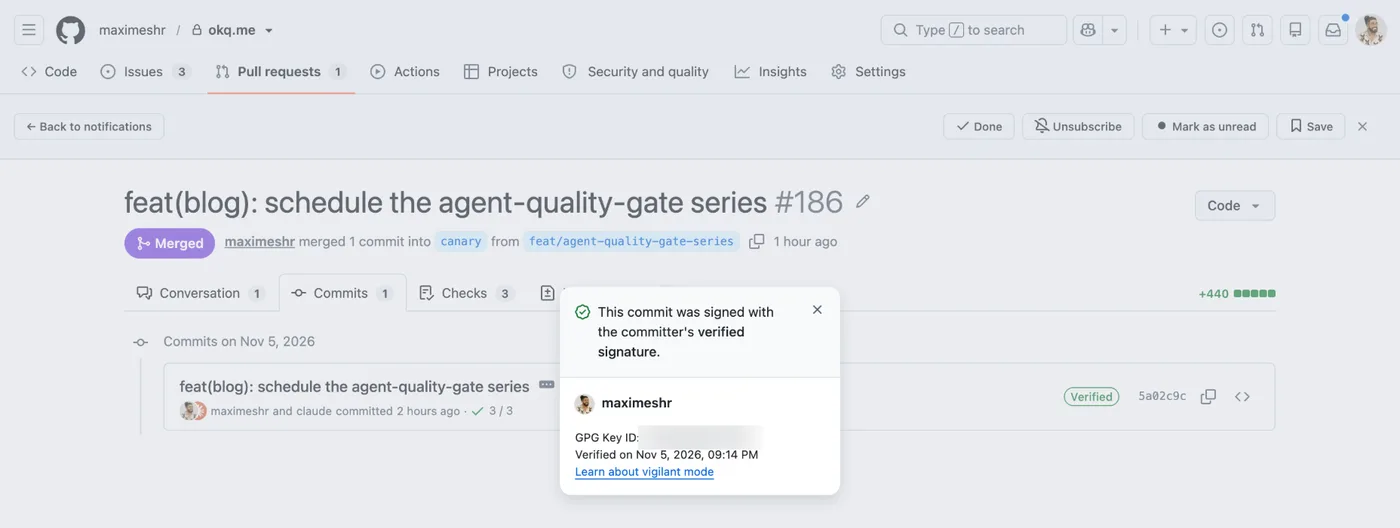
What I want on every commit from the box: Verified.
I created it without a passphrase. That’s a deliberate trade-off: an agent can’t type a passphrase, and I don’t want a GPG agent prompt blocking a run at 2 a.m. The cost is real: any process on the box can sign as me. I accept it because the box only holds personal repositories, and branch protection on those repos means a signed commit still can’t land on main without a pull request.
GitHub access
The box gets its own SSH key, not a copy of my laptop’s:
ssh-keygen -t ed25519 -C "t3 box" -f ~/.ssh/id_ed25519Added on GitHub as an Authentication key (not a signing key, the GPG key does that). Then:
ssh -T git@github.comOne key per machine means I can revoke the box without touching anything else.
For gh, I use a fine-grained token, never a classic one:
- Repositories: only the personal repos I pick. Never “All repositories”.
- Read and write: Contents (push branches), Pull requests (open them, read and post comments, like the quality report my CI leaves on each one).
- Read only: Metadata (mandatory), Actions (CI runs and their logs), Commit statuses and Deployments (where Vercel reports each deployment and its preview URL), Issues.
- Only when a task needs it: Workflows, to push a change under
.github/workflows(without it, that push is rejected), and Actions in write, to start a workflow by hand withgh workflow run. - Never: Administration, Secrets.
- Expiration: 30 to 90 days.
An agent that can’t read its own CI comes back to you for every red check.
One limit to know: a fine-grained token can’t call the Checks API, and every GitHub Actions job is a check run. So the agent reads CI through Actions instead:
gh run list --branch <branch>
gh run view <run-id> --log-failed
The token never goes through a chat, an agent prompt or the shell history:
read -rs GH_TOKEN && echo "$GH_TOKEN" | gh auth login --with-token && unset GH_TOKEN
chmod 600 ~/.config/gh/hosts.yml
And Vercel? By default, no token. GitHub already tells the agent whether a deployment worked and where the preview lives. I add one only for a project whose preview is protected, so the agent can read it with vercel curl. When I do, it’s scoped to that one project (vercel tokens create "t3 box" --project <project-id>), never to the whole team, because it still allows deploys.
Claude
As t3, not root:
claude auth loginAfter that, the Claude provider showed up as connected on the phone. If it doesn’t, restart the service from Railway.
Vite+ as the toolchain for every project
The image ships one Node.js in /usr/local/bin. My projects don’t all agree on what they need: one wants Node 24 and pnpm, another uses bun, an older one still runs on npm. And anything I’d install with apt or npm install -g lands outside /data and disappears on the next restart.
I installed Vite+ (vp) in my home directory and let it manage the toolchain. It drops shims in ~/.local/share/vite-plus/bin for node, npm, npx, pnpm, bun, yarn, and a small env script that my .bashrc and .profile source. Everything sits under /data/home, so it survives restarts.
In a project, the shim reads the project’s own pins (devEngines, packageManager) and runs the right versions, downloading them the first time:
cd /data/workspaces/okq.me
vp env        # shows the resolved Node and package manager
vp install    # installs dependencies with the pinned package manager
No nvm, no global installs, no “works on my laptop”. An agent that clones a repo gets the versions that repo asked for. And if a tool I need really isn’t covered, it goes in ~/.local/bin, never in a system path.
One catch: a non-login shell doesn’t read .profile, so a script started that way won’t see vp. Source ~/.config/vite-plus/env at the top of the script if it needs it.
Add the box as an environment in T3
Pairing gives a device access to the box. It doesn’t make the box a place where T3 runs threads. For that, the box has to be an environment: a machine T3 can start threads on, next to my laptop.
I added it from the T3 desktop app on my Mac: in the settings, Environments, then Add environment. There are two ways in: a Remote link (a host and a pairing code) or SSH. I took the remote link and pasted a fresh pairing URL from /railway-pair, which fills both fields.
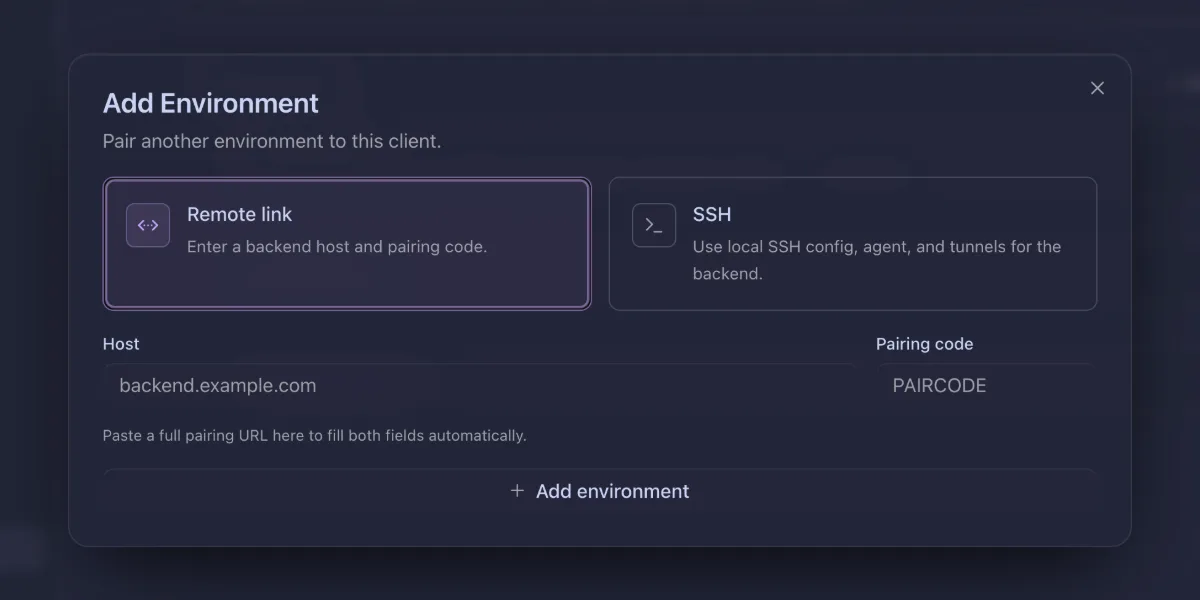
Clone, add the project, start a thread
My first attempt from the phone failed: “can’t start a thread”. The reason was dull. There was no project on the box yet. A thread runs in a project, and a project is a repository on that machine.
The macOS app can clone the repository for you while you set up the environment. By hand, from the box, it’s:
cd /data/workspaces
git clone git@github.com:maximeshr/<repo>.git
Then add it as a project in T3. After that, threads start from the phone.
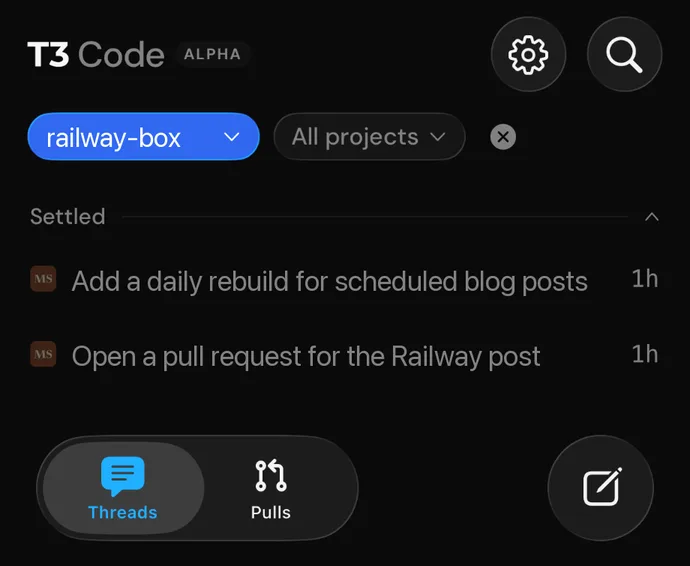
On the phone: pick the box, start a thread, walk away.
Rules I keep on this box
- No client repositories, ever. Client work stays on my laptop.
- No token or password in a chat, including with an agent. No pairing link shared.
- Agents have passwordless
sudo. I treat the box as an at-risk machine, and size what’s on it accordingly. - Revoke what I don’t recognise:
t3 auth session listfrom time to time. - Branch protection on every personal repo the box can push to.
Cleanup after the root mistake
Redoing the setup as t3 left junk behind as root: a GPG key, an SSH key, maybe a setup script. Check it, and delete it on both sides:
# as root
gpg --list-secret-keys
ls /root/.ssh
Then remove the matching GPG and SSH keys from your GitHub settings, so only the t3 ones remain. A key you forgot about is still a key that works.
What’s next
The test that matters is the full loop, started from the phone: a thread on a personal repo, a signed commit, a push, a pull request opened with gh. When that runs end to end without me touching the laptop, the box has done its job.
Share this post